Working with the Recipients list
To access the Recipients list, press F5 or click the corresponding button on
the toolbar. It will open a new window.
Atomic Mail Sender provides you with the following ways to create lists:
Some basic mailing list management routines are also available.
Importing mailing lists
Click the corresponding button on the toolbar and
select a file with the list. Atomic Mail Sender supports the following file
types:
- Text files
- CSV files
- MS Excel files
- MS Access files
- MS Word files
- DBF files
After you select a file, Atomic Mail Sender will immediately load both email addresses
and other data from it (it can
take some time for large Excel/Word/Access files). In case of database files (Access and DBF), you will be offered
to select the fields you want to import.
Importing email addresses from Outlook
It's very easy - select the following menu item on the toolbar the way it is
shown below. All addresses from the Address Book will be imported.

Pasting an email list from the clipboard
Press CTRL-V or click the corresponding button on the
toolbar to paste the list from the Windows clipboard. All found email addresses
will be added to your list.
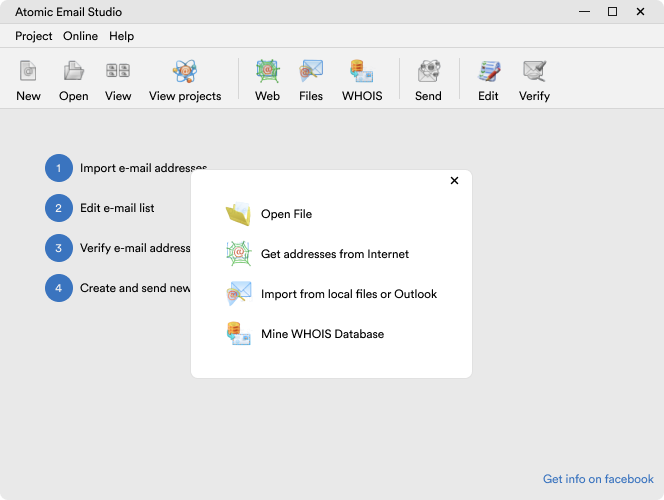
Extracting email addresses
Atomic Mail Sender is a group mail sending software, it is not an email extractor.
By the way, we have integrated it with our other Atomic email software to make
it easy to extract email addresses from the Web, local files, newsgroups and
WHOIS. Select a data source and Atomic Mail Sender will run the software and
automatically import all addresses. If the email extraction software is not
installed, it will offer you to install it.

Creating new lists manually
Press the INS and DEL keys to add and delete email addresses manually. The
buttons with the same functionality are also available on the toolbar -
and 
Mailing list management
Some basic mailing list management tasks are available in the Atomic Mail Sender.
So, you can do the following:
Delete duplicate email addresses: click the Dupes
button on the toolbar. All duplicate email addresses will be deleted automatically.
Sort the list: to sort the list by any field, click the corresponding column.
The list will be sorted by it.
Data fields editing: a right click on the email list columns opens
a context menu. There you can add new data columns and edit existing ones.
Search: press the corresponding button on the toolbar to open the Search window. You can search the list for
any data. More info about email search is available here.
Save list: the Recipients list can be saved to a file. Press the corresponding button on
the toolbar to save the list.
|