Main window
Project tree is the left upper part of the main window, where all created
project and rules are displayed as a hierarchical structure. Rules of the same
type are grouped together, ex. Web forms, Local file, Email, etc.
Form area is located in the right part of the main window. It changes
its contents depending on which item or rule is currently selected in the project
tree window (to the left). It can display subscriber list, forms for entering
/ editing rules or notifications, or project logs.
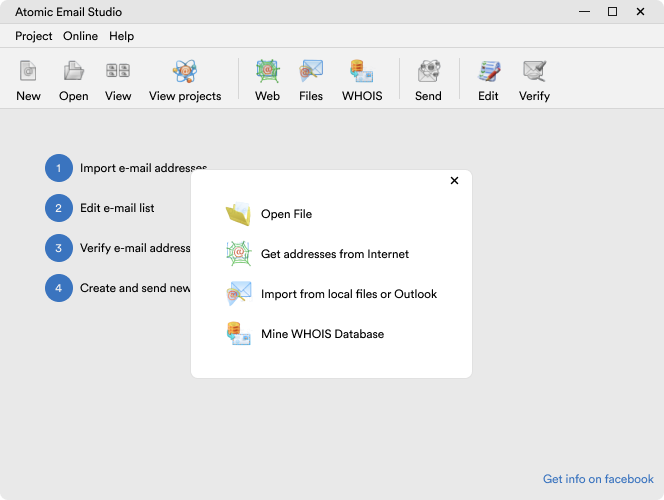
Toolbar panel is located in the upper part of the main window, where
buttons for the most frequently used commands are located:
- New: creates a new project; analogous to the menu item Add a new
list.
- Options: launches the project settings window. (Menu item File/List's
options)
- Delete: deletes the current project
- Import: imports subscriber list data from a file (Menu item Tools/Import
subscribers list)
- Export: exports subscriber list data to a file (Menu item Tools/Export
subscribers list)
- Send: run Atomic
Mail Sender and send newsletter to the current mailing list members
- Verify: run Atomic
Mail Verifier and verify mailing list entries.
- Stop: stops executing all automatic rules in the selected project
(Menu item File/Disable list)
- Stop all: stops executing all automatic rules in all projects.
Main menu
How to create a new subscription
How to manage mailing lists
Customer support
|